
Filtering lists with views
Narrow a list in Orbit MissionControl with filter rules joined by And or Or, and save the filter as a view for yourself or for everyone in your organisation.
Orbit MissionControl
View as MarkdownNarrow a list in Orbit MissionControl with filter rules joined by And or Or, and save the filter as a view for yourself or for everyone in your organisation.
Was this article helpful?
Did not find your answer?
Ask Luna, or write to our support team.
The lists in Orbit MissionControl, from tours, shipments, orders and legs to drafts, tasks, carriers, drivers, shippers and documents, can all be narrowed with a filter. A filter you need again can be saved as a view, which then sits in the navigation and opens the list already filtered.
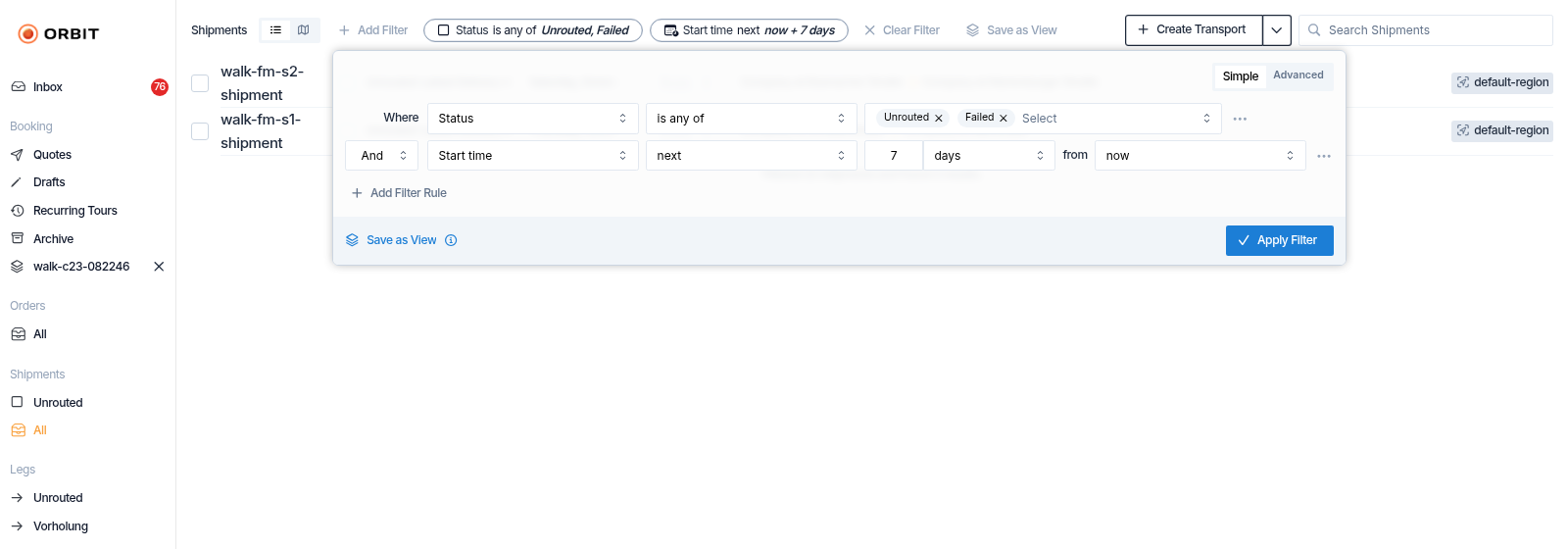
A filter is a set of rules. Each rule names a field, a comparison and a value, such as Status is any of Unrouted, Failed. Rules are joined with And or Or, and in the Advanced mode they can be grouped. A filter you apply narrows the list straight away; a view keeps it for later.
Key highlights
Open the filter
In a list in Orbit MissionControl, select Add Filter. The filter opens with a first rule, introduced by Where.
Set the rule
Choose a field, then a comparison, then the value. A date field such as Start time offers before, after, last and next. A text field offers comparisons such as contains or begins with. A field with a fixed list of options also offers is any of and is none of.
Add more rules
Select Add Filter Rule. In front of the second rule, choose And if every rule must hold, or Or if one rule is enough. Every further rule at that level uses the same word.
Apply the filter
Select Apply Filter. The list shows only the matching entries, and the rules appear in the list header. Select them to change the filter, or select Clear Filter to remove it.
Switch the filter from Simple to Advanced to group rules. Add Group adds a group, and Add Rule adds a rule inside it. Each group chooses its own And or Or and counts as one rule at the level it sits in. That is how you say, for example, "this status, and one of these two cities".
To return to Simple, remove all groups first. Until then, Simple shows the hint Remove all groups to switch back to simple mode.
| Comparison | What it matches |
|---|---|
| is any of, is none of | Offered on every field with a fixed list of options, such as Status or a custom select field. Pick several values: the entry matches when its value is one of them, or none of them. |
| contains, begins with, ends with and does not contain, does not begin with, does not end with | The text exactly as you type it, with upper and lower case treated alike. Characters such as (, + or . are matched as they are, so +49 finds the text "+49" and müller finds "Müller". |
| is empty | Entries with no value: a missing value, blank text or an empty list. |
| is not empty | The opposite: entries that have a value. |
| before, less than, less than or equal to | Only entries that have a value. An entry with no value is never "before" a date or "less than" a number. |
A task without a due date therefore never matches Due date before a date: it has no due date to compare.
Some counters on shipments are only written once a shipment is split. Leg Count then counts a shipment without it as one leg and Written-Off Loads as zero, so Leg Count less than 2 finds every shipment that was never split.
A rule whose value you never filled in has no effect, and so has a between rule with only one end filled in. The list ignores it, and a view saved with it leaves it out. is empty and is not empty are the exception: they need no value.
Build the filter
Build the filter as described above.
Name the view
Select Save as View, choose an icon and enter a View Name.
Choose who sees it
Select Save as View to keep the view for yourself, or Save View for Everyone to share it with everyone in your organisation. Only the options your role allows are offered.
The view appears in the navigation under its list, with its name and icon. Select the cross next to a view's name to delete it, if your role allows deleting views.
A filter you apply without saving belongs to the page you are on. It is part of the page address, so a link to that address opens the list with the same filter, but when you leave the list the filter is gone.
The Tours, Shipments, Orders and Legs lists load their entries in pages. Most rules are applied before a page is loaded, so every page holds matching entries only.
A few rules can only be checked against the entries already loaded, for example contains or ends with on a text such as a tour's Comment, or Has Shipments on tours. While a filter holds such a rule, the list shows this line:
Note
This filter is only fully applied to the entries loaded so far. More matches may appear as you load more.
Nothing is wrong. Select Load More at the end of the list, and further matching entries appear.
Julia plans transports for Nordlicht Spedition in Hamburg. Every morning she needs the shipments that still have to be planned for the coming week. In the Shipments list she selects Add Filter, sets Status is any of Unrouted and Failed, adds Start time next 7 days from now with And, and selects Apply Filter. She names the filter "To plan this week" and selects Save View for Everyone, so Max, who plans the Lyon lane, and Mohammad, who plans the Tokyo lane, open the same list from the navigation.
A view saved with Save as View is yours alone. A view saved with Save View for Everyone appears in the navigation for everyone in your organisation.
No. contains, begins with, ends with and their negations ignore upper and lower case, and match what you type literally, including characters such as ( or +.
It is ignored. The list does not use it, and it is not stored when you save the view.
A comparison such as before needs a value to compare. A task without a due date has none, so it never counts as due before any date. Use is empty on a field that offers it to find entries without a value.
The filter holds a rule that can only be checked against the entries already loaded, such as contains on a text. More matches can sit in the entries not loaded yet. Select Load More to see them.
Not unless you save it as a view. An applied filter lives in the page address only, so it is gone when you leave the list.