
Exporting data
Download orders, shipments, tours, shippers, carriers, drivers and vehicles from Orbit MissionControl as a CSV or JSON file.
Orbit MissionControl
View as MarkdownDownload orders, shipments, tours, shippers, carriers, drivers and vehicles from Orbit MissionControl as a CSV or JSON file.
Was this article helpful?
Did not find your answer?
Ask Luna, or write to our support team.
The export in Orbit MissionControl downloads your operational data and master data as a file, so you can use it outside Orbit. Use it to prepare a report, reconcile records with another system or hand a selected set of records to a colleague.
Key highlights
Orders, Shipments, Tours, Shippers, Carriers, Drivers and Vehicles, each on its own tab.Open the settings
In Orbit MissionControl, select Settings in the navigation. The Profile page opens.
Open the export dialog
In the Export section, select Export. A dialog opens with one tab per record type.
Choose a record type
Select the tab for the records you need, for example Shipments.
Set up the export
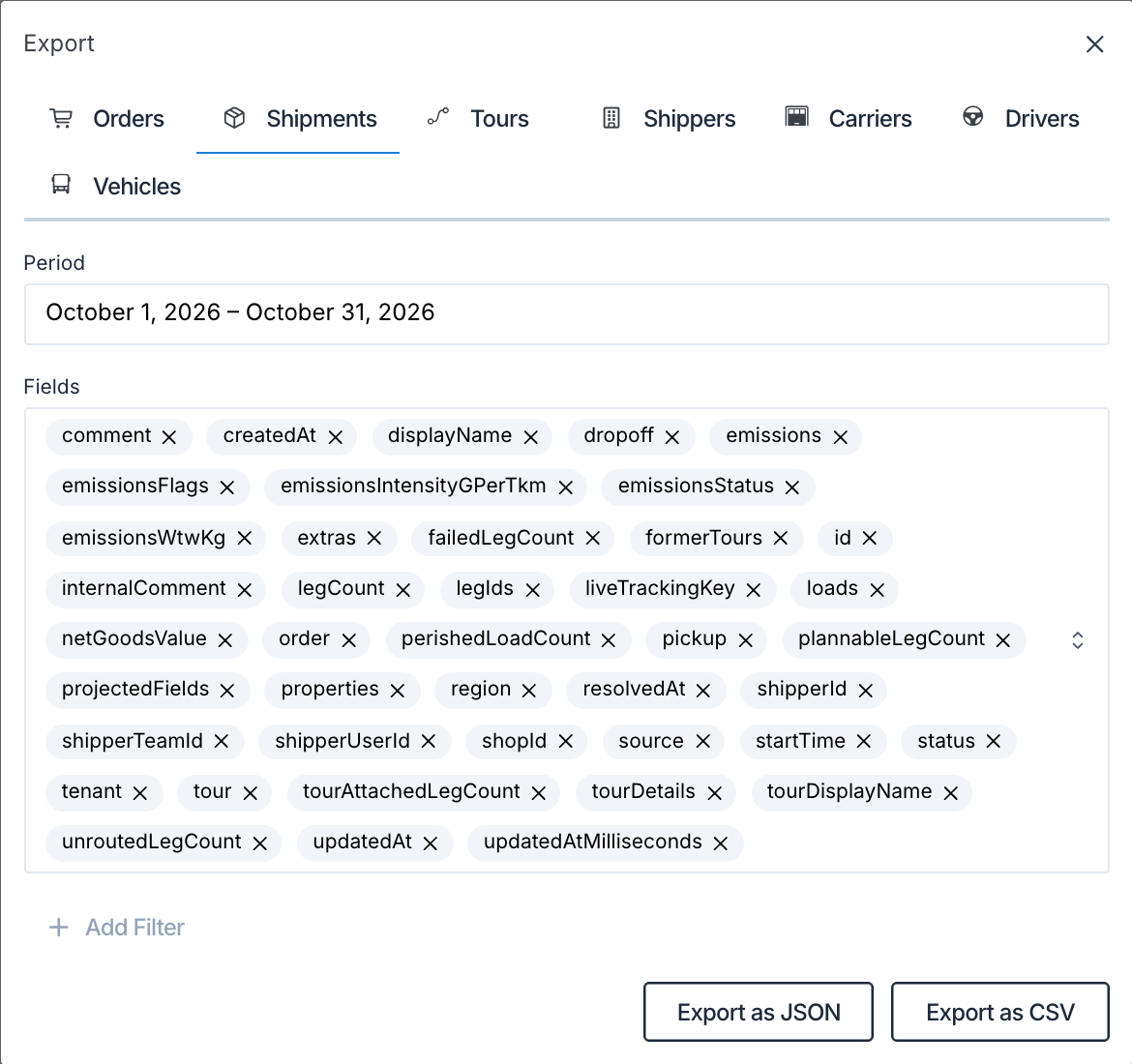
Set the Period, the Fields and any filters the tab offers.
Download the file
Select Export as CSV or Export as JSON. Your browser downloads the file, and Orbit shows Export Successful.
The controls differ by record type.
| Tab | Period | Fields | Filters | Formats |
|---|---|---|---|---|
| Orders | Yes | Yes | Yes | CSV or JSON |
| Shipments | Yes | Yes | Yes | CSV or JSON |
| Tours | Yes | Yes | Yes | CSV or JSON |
| Shippers | No | Yes | No | CSV or JSON |
| Carriers | No | Yes | No | CSV or JSON |
| Drivers | No | Yes | No | CSV or JSON |
| Vehicles | No | Yes | No | CSV or JSON |
The export buttons stay disabled until you have chosen at least one field and, on the tabs with a period, both a start and an end date.
The Period decides which orders, shipments and tours go into the file. Each record type uses a different date:
| Tab | The period is matched against |
|---|---|
| Orders | The date the Order was created |
| Shipments | The start of the Shipment's pickup time window |
| Tours | The latest start time at the Tour's first stop |
The period includes both days you pick. It counts whole days in the Europe/Berlin time zone, from the start of the first day to the end of the last day.
The Fields list holds every field Orbit stores for the record type, under the field names Orbit uses for them. Remove the fields you do not need; the file contains only the fields left in the list. Shipments and tours also offer emission fields, such as emissionsWtwKg and emissionsStatus.
On the Orders, Shipments and Tours tabs, select Add Filter to narrow the records within the period, for example to one status or one region. The filters work like the filters on the lists in Orbit MissionControl, described in Filtering lists with views, but they belong to the export dialog: a filter you set on a list does not carry over, and each export tab starts without filters.
Shippers, Carriers, Drivers and Vehicles have no period and no filters. The file holds all records of that type. Carriers, Drivers and Vehicles include active and inactive records.
The file holds one entry per record, in one column (CSV) or one property (JSON) per field you chose. Its name starts with the record type and, for orders, shipments and tours, the period, for example shipments_2026-10-01_2026-10-31_….csv. The export contains only the records you are allowed to see in Orbit MissionControl, and it has no limit on the number of records: a long period takes longer to download.
Julia works in dispatch at Spaceport Shipping Co. and prepares a monthly report on delivered shipments in the Paris region. She opens the export, selects the Shipments tab and sets the Period from 1 October to 31 October. She keeps only the fields she needs, adds a filter for the status and the region, and selects Export as CSV. She opens the file in her spreadsheet and builds the report from it.
The Orbit API lists orders, shipments and tours by the same dates, so a scheduled job can fetch the records without the export dialog. See the Orbit API Reference and create a key as described in API keys.
Yes. Open the Shipments tab in the export dialog, set the Period and select Add Filter to add the same kinds of filters you use on the shipment list. The filters you set on the shipment list itself do not carry over to the export, so set them again in the dialog.
Every tab offers Export as CSV for spreadsheets and Export as JSON for other systems.
The export dialog is a manual download. To fetch data on a schedule, use the Orbit API with an API key. You can also connect an AI assistant over MCP and ask it for your records, as described in Connecting AI Assistants to Orbit.
Check the date the tab matches against, the period and the filters on the export tab. The file also leaves out records you are not allowed to see.
No. The export uses its own Fields list with the field names Orbit stores, not the columns of a list.